Need a candidate list outside Vincere? The most reliable route is to build the list in Advanced Search, verify the columns you need, and export only the records that are appropriate for the purpose. This guide covers the Vincere ATS export CSV workflow, common access issues, and the point at which a direct integration is safer than recurring spreadsheets.
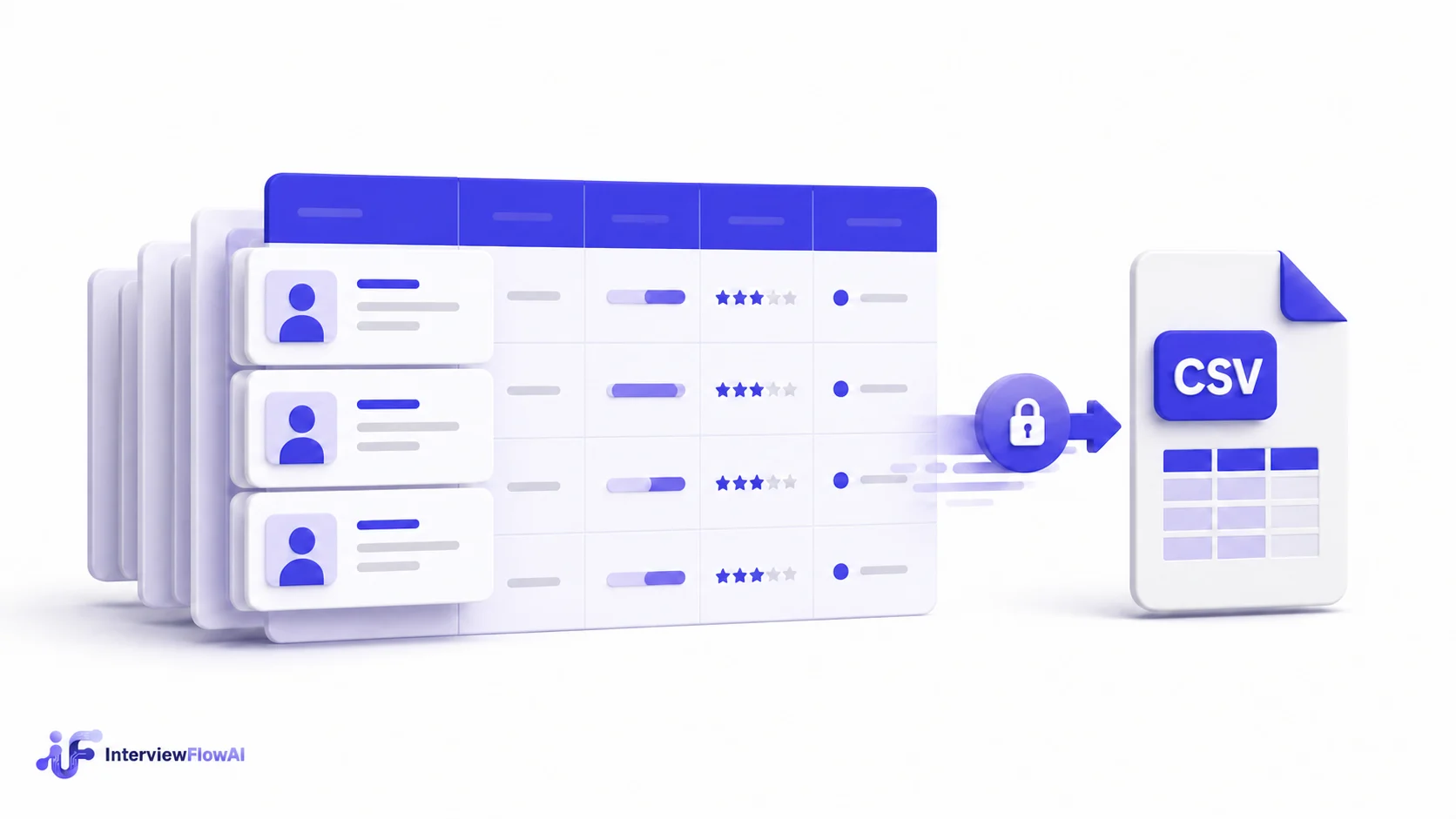
How to export candidates from Vincere ATS to CSV
- Open Advanced Search in Vincere and choose the candidate search.
- Add filters first: status, owner, location, skill, date added, or the assignment you need.
- Run the search and review the result count. Spot-check a few records before exporting.
- Set the visible columns to the fields your report or downstream system requires, such as name, email, phone, source, status, consultant, skills, and date added.
- Use the export action in the results view and select CSV.
- Open the downloaded file in a spreadsheet tool and check that the column headers, row count, and character encoding are correct before sharing or importing it.
Vincere permissions and menu labels can differ by account configuration. If you cannot find the export action, ask an administrator to confirm your role permissions or consult the Vincere Help Center for the workflow available in your plan.
Choose the fields before you export
A CSV is only useful when its fields match the next step. For a recruiting report, include the candidate identifier, pipeline status, source, owner, dates, and the dimensions you will group by. For an external screening workflow, export only the contact and job-relevant fields needed to invite, identify, and assess the candidate. Avoid downloading sensitive notes, protected data, or documents simply because they are available.
Common Vincere CSV export problems
The export option is missing
This is usually a role-permission or account-setting issue. Confirm that you are in the correct search view and ask your Vincere administrator which export permissions apply to your role.
The CSV has the wrong candidates
Start over from a saved search with explicit filters. Check status, ownership, date range, and whether archived or duplicate records are included before downloading the file.
Columns are missing or hard to read
Configure the results grid before exporting. If a spreadsheet renders names or non-English characters incorrectly, import the CSV using UTF-8 rather than opening it by double-clicking.
You need to export the same list every week
Recurring manual exports create version-control, consent, and data-quality risk. Use a supported integration, API, or controlled automation when the workflow needs to stay in sync. Keep a clear data owner, minimize fields, and document where the exported file is stored.
When a CSV export is the right choice
CSV exports work well for one-off audits, a small offline analysis, or a controlled migration. They are a poor fit for live candidate status updates or repeated screening operations. In those cases, a direct ATS connection keeps the record of truth in Vincere and reduces duplicate data entry.
FAQ
Can I export candidates from Vincere to CSV?
Yes. Build a candidate list in Advanced Search, verify the fields and filters, then use the export option available to your account. Your Vincere administrator can help if export access is restricted.
What should I include in a Vincere candidate CSV export?
Include only the fields needed for the intended task: a candidate identifier, contact details where justified, relevant status and source data, and job-related fields. Review privacy and retention obligations before sharing the file.
Where is the Vincere export CSV candidates help center?
Use the Vincere Help Center and search for your account’s export or Advanced Search guidance. The precise controls can vary by role and configuration.
Use the right Vincere export method
Vincere separates quick record exports from scheduled data exports. Advanced Search is appropriate when you need a filtered list of candidates, contacts, jobs, or companies for a one-off review. Vincere’s current Help Center confirms that filtered Advanced Search results can be exported to CSV. For recurring reporting on application and onboarding data, use the Data Export area instead: it lets you choose a data set, select fields, schedule the report, and download it after processing.
Advanced Search export checklist
- Choose the correct record type. A candidate search and an application search answer different questions.
- Apply filters in Advanced Search, not only in the visible columns. Vincere notes that CSV export respects Advanced Search filters rather than column filters.
- Save a recurring search before exporting it again. This makes the population repeatable and easier to audit.
- Check the row count and sample records before distributing the file.
- Record why the export was created, who can access it, and when it should be deleted.
Prepare a CSV for reporting, migration, or screening
Start with the downstream use case. A reporting CSV may need candidate ID, owner, source, pipeline stage, date added, and activity dates. A migration file needs stable identifiers and validated field mappings. A screening import normally needs only the candidate’s permitted contact details, the role or requisition identifier, and job-relevant context. Fewer columns reduce accidental disclosure and mapping errors.
Before importing an export into another tool, normalize common issues: remove duplicate rows, confirm email formats, use one date format, preserve the original identifier, and agree on the allowed values for status fields. Never treat a spreadsheet as the source of truth for live candidate movement; decide which system owns each field and use a supported integration when updates must flow both ways.
Troubleshooting and data governance
Large results can take time to process, and account permissions can restrict fields or export actions. If the output is unexpectedly broad, revisit the Advanced Search filters. If values are blank, confirm that the relevant field is populated in Vincere. If a scheduled export is still queued, wait for completion before downloading rather than generating duplicate reports.
Candidate data deserves the same discipline as any other sensitive business data. Use role-based access, export the minimum necessary fields, avoid email attachments where a controlled workspace is available, and set a deletion date. When exporting for an AI screening workflow, make sure the candidate notice, retention policy, and accommodation process match the destination system as well as your ATS policy.
Practical example: weekly candidate pipeline report
A recruitment leader needs a weekly view of active applicants for a regional sales role. First, create an Advanced Search for the role, location, active stage, and date range. Save it with a clear name. Export the filtered results to CSV, check a small sample against the ATS, then calculate the metrics in a controlled report. The export should not include unrelated notes, documents, or dormant candidates. This approach gives the team a repeatable report without creating a second, unmanaged candidate database.