The Recruit CRM integration for InterviewFlowAI sends a candidate an AI interview invitation when they reach a hiring stage you choose on a Recruit CRM job. When the candidate finishes, InterviewFlowAI adds their score, the recommendation, and a link to the full report as a note on their Recruit CRM profile.
Recruiters keep working in Recruit CRM. The first-round screening conversation happens without anyone booking a call, and the evidence is on the candidate record before you decide who goes forward to the client.
This guide explains what the integration does, how it fits next to Recruit CRM's own AI features, how to set it up, which statuses can move candidates between stages, how assessments and role plays fit in, and what to check before you switch it on for a live job.
What does the InterviewFlowAI Recruit CRM integration do?
The integration links a Recruit CRM job to an InterviewFlowAI Interviewer. An Interviewer is the AI interviewer you set up for one role, with its own questions, scoring criteria, language, and invitation email. Recruit CRM decides when a candidate is ready for screening. InterviewFlowAI runs the interview and reports back.
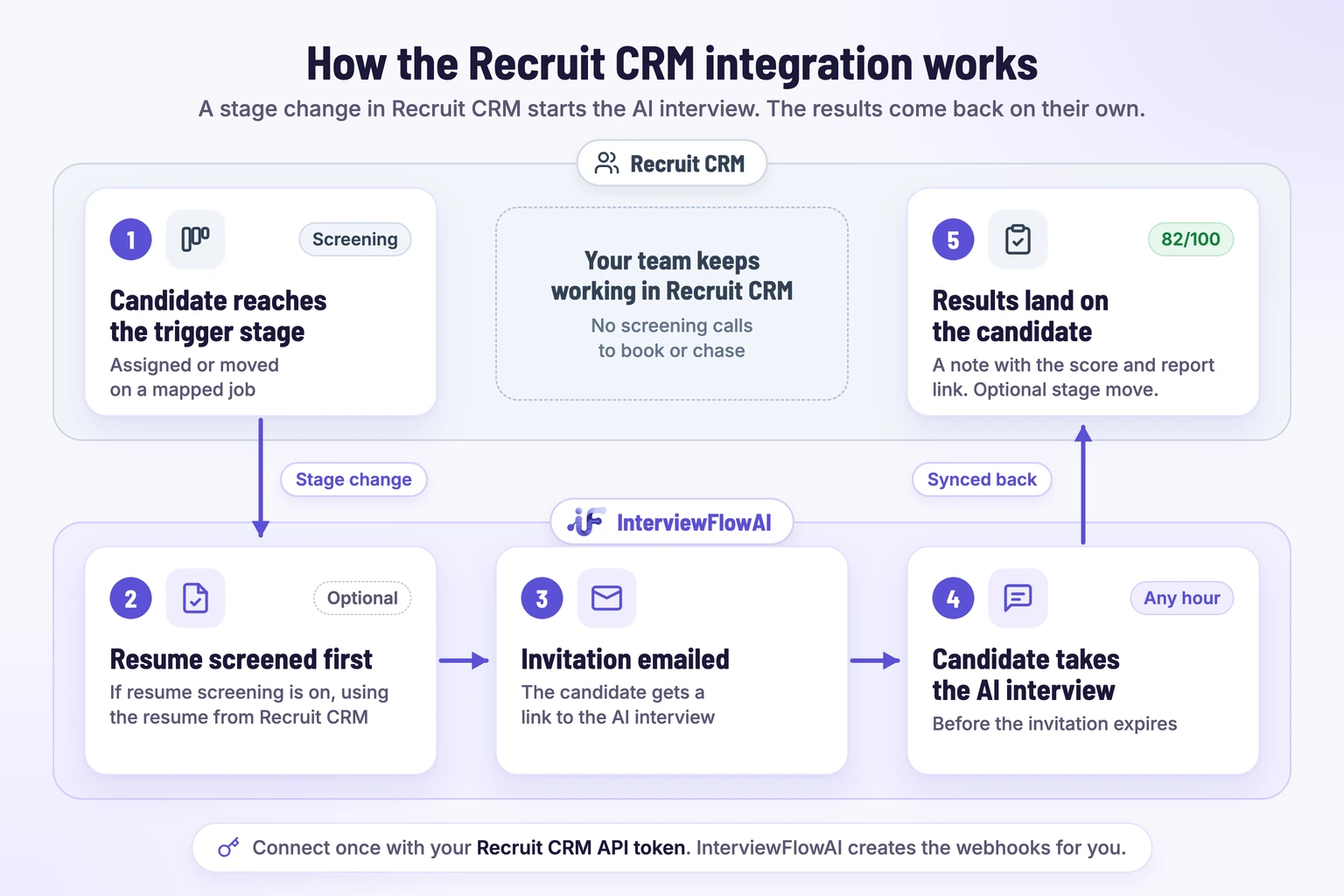
Here is what happens to one candidate:
A recruiter assigns the candidate to a Recruit CRM job, or moves them into the trigger stage you mapped, such as Screening.
If resume screening is on for the Interviewer, InterviewFlowAI takes the resume from the candidate's Recruit CRM profile and screens it first.
The candidate receives an email invitation to the AI interview. If the Interviewer includes an assessment, the assessment comes first.
The candidate completes the interview at any hour before the invitation expires.
InterviewFlowAI adds a note to the candidate's Recruit CRM profile with the score, the recommendation, and the report link. The note is linked to the job.
If you set up status sync, InterviewFlowAI moves the candidate to the Recruit CRM stage you chose for their new status.
| Direction | What moves | When |
|---|---|---|
| Recruit CRM to InterviewFlowAI | Candidate name, email address, phone number, and resume | The candidate enters the mapped stage on the mapped job |
| InterviewFlowAI to Recruit CRM | A note with the score out of 100, the recommendation, and the report link | The interview report finishes processing |
| InterviewFlowAI to Recruit CRM (optional) | A hiring stage change | The candidate's InterviewFlowAI status changes to one you mapped |
You don't have to build webhooks. When you connect your API token, InterviewFlowAI creates the Recruit CRM webhooks it needs.
Does Recruit CRM have AI candidate screening?
Recruit CRM is an ATS and CRM built for recruitment agencies and executive search firms, and it has added several AI features. Its AI candidate matching announcement describes matching that scores candidates against a profile from 0 to 100 and shows up to 25 matches, plus AI resume parsing. Recruit CRM also lists AI Sourcing, AI agents that draft candidate submissions, format resumes, and write pitch emails, an MCP connection for AI assistants, and an AI meeting notetaker that records and transcribes calls.
Those features work with information your team already has: resumes, profiles, and the calls recruiters run themselves. As of October 2026, Recruit CRM's feature list does not include an AI interviewer that holds the screening conversation with the candidate. That conversation is the part InterviewFlowAI adds.
| Hiring step | In Recruit CRM | What InterviewFlowAI adds |
|---|---|---|
| Rank candidates for a job | AI candidate matching and resume parsing | Resume screening against must-have qualifications and weighted criteria, with quoted evidence from the resume |
| First-round screening conversation | A recruiter call, which the notetaker can record | A two-way AI interview with follow-up questions, taken by the candidate without scheduling |
| Evaluate the answers | Recruiter judgment and notes | A rubric-based scorecard, recording, transcript, summary, and recommendation |
| Test job knowledge | Not listed | Timed, auto-scored assessments that run before the AI interview |
| See the candidate handle a real work conversation | Not listed | AI role plays scored against your criteria |
| Check interview integrity | Not listed | Trust Score proctoring signals on Scale and Enterprise plans |
| Record the outcome | Notes and hiring stages, updated by hand | An automatic note with the score and report link, and optional stage moves |
| Submit to the client | Candidate Submission Agent and formatted resumes | A PDF interview report you can attach to the submission |
Why recruitment agencies connect an AI interviewer to Recruit CRM
Many client jobs, one way of working
Each Recruit CRM job maps to its own Interviewer, so a warehouse supervisor role and a senior accountant role get different questions and rubrics. Recruiters still move candidates through stages the way they do today. The stage change starts the screening.
Evidence for client submissions
A CV tells the client what the candidate claims. The InterviewFlowAI report adds what the candidate said when asked about it. You can export the report as a PDF with a decision snapshot, strengths and risks, scores, answers, and the transcript, then attach it to the submission. For sales and other client-facing roles, add an AI role play and the PDF also shows how the candidate handled a realistic conversation. Before you share interview results with a client, check that your candidate privacy notice covers it.
Screening outside office hours and across time zones
Candidates take the interview when it suits them, including evenings and weekends, and InterviewFlowAI interviews in 16 languages. For agencies filling roles in several countries, the first round no longer depends on finding a slot that works for both sides.
Checking resume claims before the client sees them
Resume-aware questions ask the candidate about the experience they listed, and follow-ups probe vague answers. That gives your recruiters a reason to advance or hold a candidate that goes beyond keyword matching. Read more about how AI candidate screening works.
Handling volume without adding recruiters
When a job draws hundreds of applicants, the first screen is usually where the backlog builds. Mapping the trigger stage lets every qualified candidate get an interview the moment they are assigned, and recruiters spend their time on the completed reports. See how InterviewFlowAI works for recruitment agencies.
How to set up the Recruit CRM integration
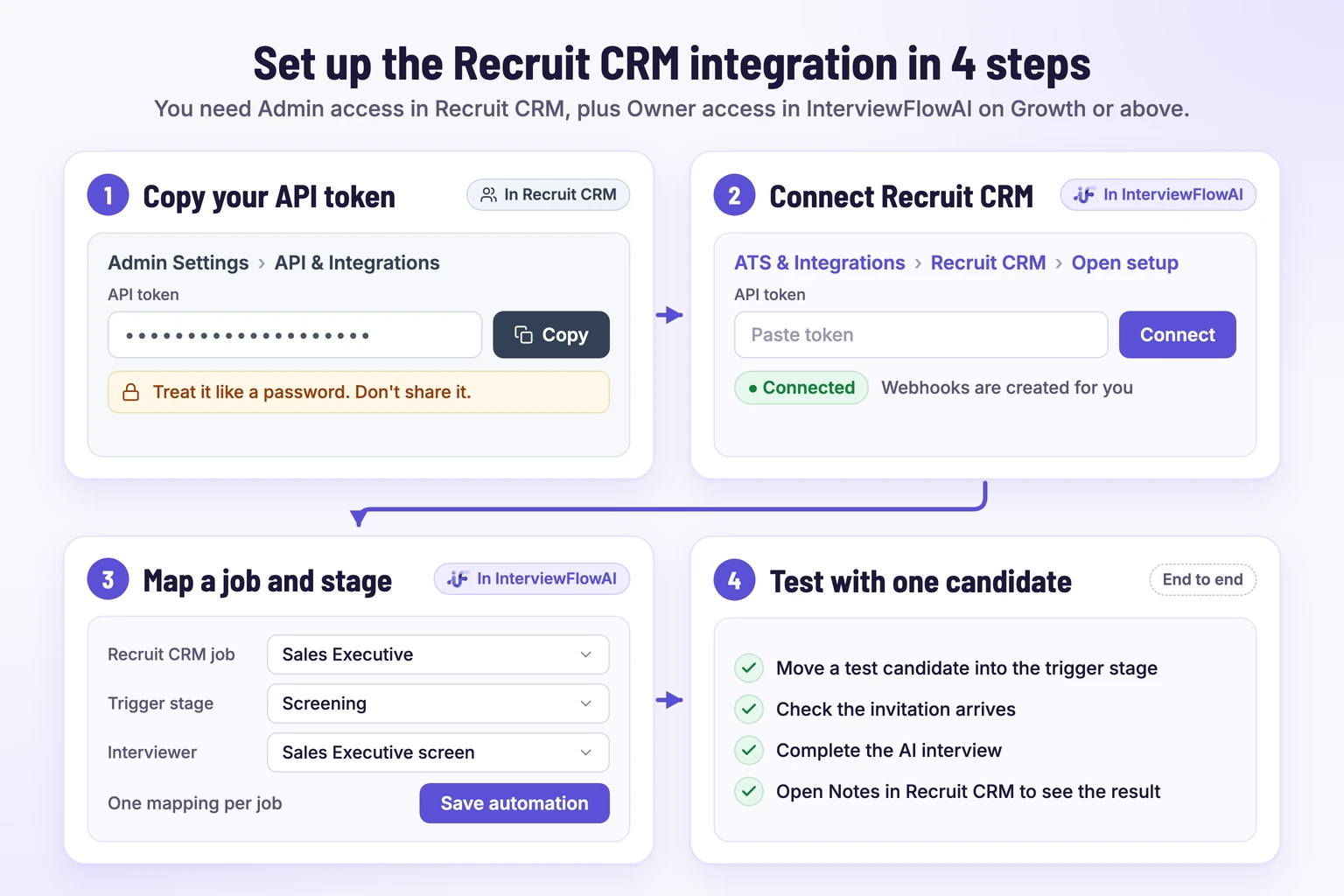
Before you start, you need:
Owner access in InterviewFlowAI
Admin access in Recruit CRM
An active InterviewFlowAI Interviewer for the job
An InterviewFlowAI plan that includes ATS integrations (Growth, Scale, or Enterprise)
A Recruit CRM plan with API access. Third-party integration guides report that Recruit CRM limits its API to the Business plan or above, so confirm this in your account.
1. Prepare the InterviewFlowAI Interviewer
Create or open the Interviewer you want to use for the Recruit CRM job. Check its questions, evaluation criteria, language, expiration period, and invitation email. If you want resumes screened before the interview, turn on Resume required and add at least one required qualification or evaluation criterion.
2. Copy your Recruit CRM API token
In Recruit CRM, go to Admin Settings > API & Integrations and copy your API token.
Treat the token like a password. It gives access to your recruiting data. Don't share it in email or chat, including with support.
3. Connect Recruit CRM to InterviewFlowAI
In InterviewFlowAI, open ATS & Integrations. Find Recruit CRM and click Open setup. Paste the token into API token and click Connect. A Connected badge appears, and InterviewFlowAI creates the Recruit CRM webhooks.
4. Map a Recruit CRM job to an Interviewer
Under Candidate automation, click Add mapping and choose:
Recruit CRM job: the job candidates are assigned to
Trigger stage: the hiring stage that sends the invitation, such as Screening. To invite candidates as soon as they are added to the job, choose the first stage, such as Assigned.
Interviewer: the InterviewFlowAI Interviewer the candidate takes
Click Save automation. Add one mapping for each job. Several jobs can use the same Interviewer when the role is the same, for example the same position for two clients.
5. (Optional) Move candidates when their status changes
Under the mapping, open Sync status to Recruit CRM and pick a Recruit CRM stage for any InterviewFlowAI status you want to act on. Leave a status on Don't move to skip it. Click Save automation. The next section lists the statuses.
6. Test with one candidate
Move a test candidate with your own email address into the trigger stage. Check that the invitation arrives, complete the interview, then open the candidate's Notes in Recruit CRM to see the result. If you mapped statuses, confirm the candidate moved to the right stage.
The full reference is in the Recruit CRM integration docs.
Which InterviewFlowAI statuses can move candidates in Recruit CRM?
Status sync is optional. Map only the statuses your team acts on. Role play progress is not one of the options.
| InterviewFlowAI status | What it means | A common Recruit CRM stage choice |
|---|---|---|
| Assessment invited | The candidate was invited to an assessment that comes before the interview | Usually Don't move |
| Assessment completed | The candidate finished the assessment | A review stage, if recruiters move candidates on to the interview themselves |
| Interview started | The candidate began the AI interview | Usually Don't move |
| Interview completed | The candidate finished the AI interview | The stage where recruiters review results before submitting to the client |
| Declined | A recruiter declined the candidate in InterviewFlowAI, or resume screening or assessment rules declined them | Your rejection stage |
| Opted out | The candidate chose not to take the interview | Your rejection or withdrawn stage |
| Invite expired | The deadline passed before the candidate completed the interview | A follow-up stage, so a recruiter can chase or close the candidate |
Each automatic move carries a remark that starts with "InterviewFlowAI:", so your team can tell it apart from a manual change.
To reject candidates in Recruit CRM, map Declined and Opted out to your rejection stage. The integration rejects a candidate by moving them to that stage. If resume screening or automatic assessment progression is on, candidates they decline will also move there without a person reviewing them. Check those rules before you map Declined on a live job.
What recruiters see in Recruit CRM after the interview
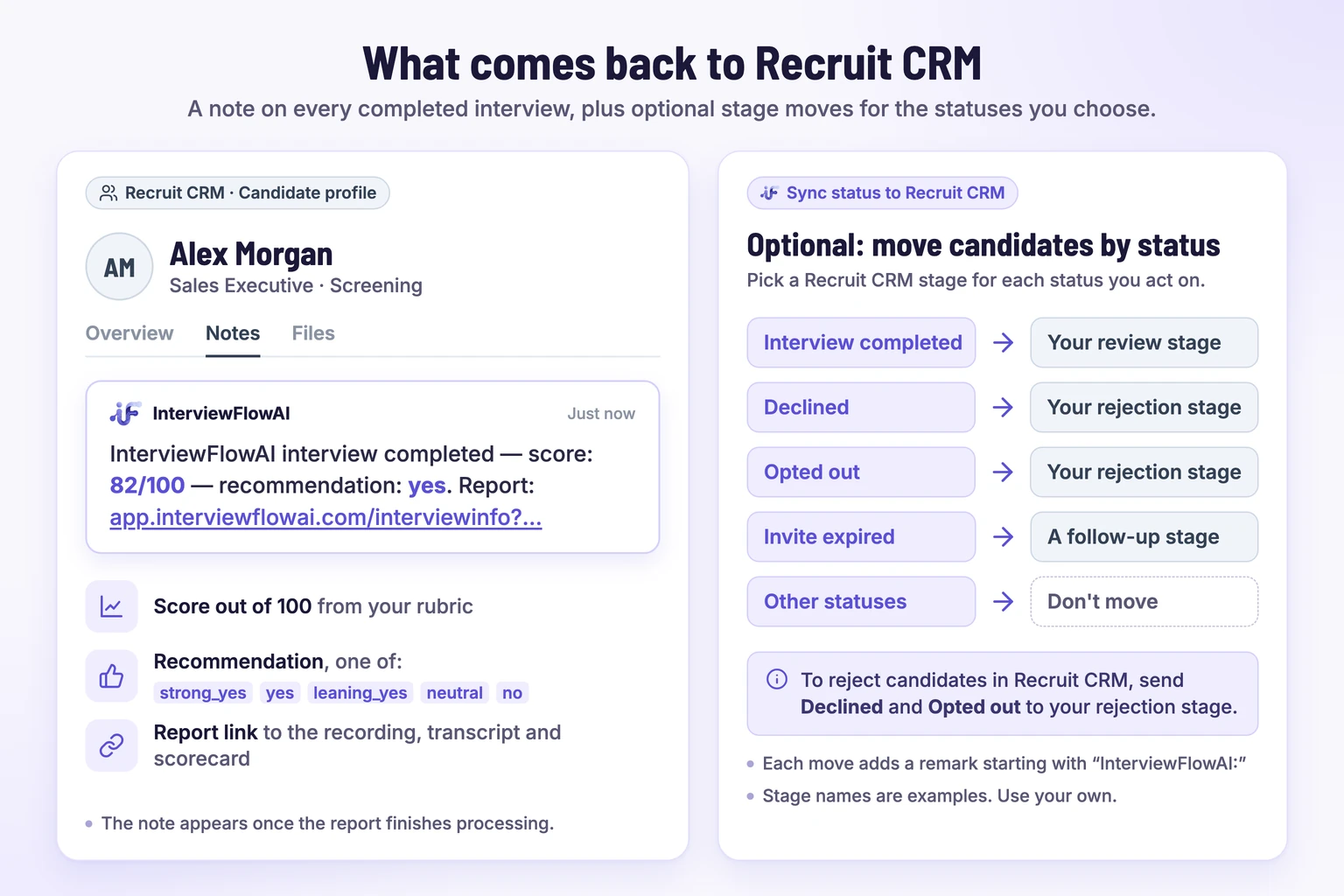
When the report finishes processing, a note appears on the candidate's Recruit CRM profile. It looks like this:
InterviewFlowAI interview completed — score: 82/100 — recommendation: yes. Report: https://app.interviewflowai.com/interviewinfo?interviewId=...
The recommendation is one of five values: strong_yes, yes, leaning_yes, neutral, or no. It helps recruiters sort the queue. It is not a hiring decision.
The report link opens the full candidate report in InterviewFlowAI, which includes:
An interview summary with strengths, risks or gaps, skill scores, and the recording
The full transcript, with an English version when the interview ran in another language
Communication analysis, custom question answers and scores, and application question answers
Assessment results and any AI role play results, each on its own tab
A timeline of each step the candidate took
The Trust Score and proctoring details, on plans that include them
Team members with Viewer access can read reports and export them as PDFs, but only Owners can accept, decline, or rate candidates. Learn more about scorecards and transcripts.
How resume screening works with Recruit CRM candidates
Resume screening runs before the invitation, using the resume stored on the candidate's Recruit CRM profile. PDF and DOCX files up to 5 MB are supported. It only runs when Resume required is on for the Interviewer and you have added at least one required qualification or evaluation criterion.
Required qualifications are pass or fail. With Auto reject when must-have fails on, a resume that misses one is declined.
Evaluation criteria score the resume, each with a weight from 1 to 10.
Candidates who score below the Minimum pass score (70% by default) are declined.
Declined candidates are not invited to the interview. If you mapped Declined, they also move to that Recruit CRM stage.
If Recruit CRM has no supported resume for the candidate, the screening step is skipped and the invitation is sent.
For the first few jobs, set a lower pass score or leave auto-reject off, read the declined resumes, and tighten the rules once you trust them. Vague requirements such as "good leadership" lead to false declines, because the AI only credits what the resume states. See AI resume screening for how the scoring works.
How assessments and role plays fit into the Recruit CRM workflow
The AI interview is one of four screening steps InterviewFlowAI can run for a Recruit CRM job. Resume screening and assessments run automatically when the candidate reaches the trigger stage. A recruiter adds role plays. Only the AI interview posts a note back to Recruit CRM.
| Step | What it checks | How a Recruit CRM candidate gets it | What reaches Recruit CRM |
|---|---|---|---|
| Resume screening | Must-have qualifications and weighted criteria in the resume | Automatically, when they enter the trigger stage | A stage move, if you mapped Declined |
| Assessment | Knowledge and skills with clear right answers, under a time limit | Automatically, before the AI interview, if the Interviewer has an assessment flow | Stage moves for Assessment invited, Assessment completed, or Declined, if mapped |
| AI interview | Experience, reasoning, and communication in a spoken conversation | Automatically, at the trigger stage or after the assessment | A note with the score, recommendation, and report link, plus any mapped stage moves |
| AI role play | How the candidate handles a realistic work conversation | A recruiter adds them from the Interviewer's candidate list | Nothing. Results stay in the InterviewFlowAI report and PDF |
Assessments before the AI interview
An assessment flow holds one to five timed tests and belongs to one Interviewer. Most question types are scored automatically: single and multiple select, true or false, numeric, and fill in the blank. Short and long written answers are collected for you to read but are not scored. Proctoring options include tab-change and focus-loss detection, copy and paste prevention, fullscreen, and optional face and gaze detection.
When the Interviewer you mapped has an assessment flow, candidates who reach the Recruit CRM trigger stage get the assessment invitation first. What happens after they finish depends on one setting:
Automatically continue to the AI interview is on: candidates who meet the required total score and the pass score of every required assessment go straight to the AI interview. Candidates who fall short are declined, and they move to your rejection stage if you mapped Declined.
Automatic progression is off: candidates wait in Assessment completed until a recruiter reviews the results and clicks Shortlist for AI interview. Map Assessment completed to a Recruit CRM stage so your team can see who is waiting. On a public Interviewer, everyone who finishes continues to the AI interview.
Use an assessment when the role needs knowledge with right answers, such as product knowledge, aptitude, or a technical topic, and let the AI interview cover how the candidate explains their experience. Results appear on the Assessments tab of the candidate report. Read more about skill assessments.
AI role plays for client-facing roles
An AI role play is a live voice conversation in which an AI character plays a customer, prospect, or colleague in a situation you describe, such as a discovery call or a frustrated customer. The transcript is scored from 0 to 100 against your criteria. A score of 2 or lower on a must-pass criterion turns the recommendation to No without changing the score.
Role plays are not attached to an Interviewer, so the Recruit CRM trigger stage does not send them. Once a Recruit CRM candidate is in the Interviewer's candidate list, a recruiter can send one with Add to role play, for one candidate or several at once. A common pattern is to review the AI interview first, then send a role play to the candidates you want to see in action before you submit them to a client.
Each person gets one attempt at each role play. Results appear on the Role Play tab of the candidate report and in its PDF export. They are not posted to Recruit CRM, so the Recruit CRM note reflects the AI interview only. See AI role plays for how scoring works.
Rules to know before you go live
One interview per candidate per Interviewer. Moving a candidate into the trigger stage again doesn't send a second invitation. To let someone retake it, use Reset Interview in InterviewFlowAI.
Existing candidates aren't invited. Candidates who were already in the trigger stage before you saved the mapping don't get an invitation. Move them out of the stage and back in.
The candidate needs an email address in Recruit CRM. Without one, no invitation is sent.
The job list shows your first 500 Recruit CRM jobs.
Changing the token means reconnecting. To use a different token, click Disconnect and connect again with the new one. Disconnecting removes the webhooks, the token, and all your mappings, and candidates already invited stop syncing, so note your mappings first.
Troubleshooting the Recruit CRM integration
| Problem | What to check |
|---|---|
| The token won't connect | Copy the full token with no spaces. If you see a rate limit message, wait one minute and try again. |
| No invitation was sent | The mapping was saved before the candidate moved, the job and stage match the mapping, and the candidate has an email address. Ask the candidate to check spam. If resume screening is on, check whether the candidate was declined. |
| No note in Recruit CRM | The report has finished processing in InterviewFlowAI. Refresh the candidate's profile. |
| Notes stopped appearing for invited candidates | Recruit CRM is still connected. Disconnecting removes the webhooks and mappings, and candidates invited before that stop syncing. |
| The candidate didn't change stage | The status is mapped to a stage, not left on Don't move, and the mapping was saved. |
If you are still stuck, email support@interviewflowai.com with the job name and the candidate's email address. Don't include your API token.
How to roll out AI interviews in Recruit CRM
Start with one job that gets steady applications and has clear requirements. During the pilot, have a recruiter review every completed interview and compare the recommendation with their own judgment. Track:
How many invited candidates complete the interview
Time from the trigger stage to a completed interview
How often the recruiter agrees with the recommendation
How many submitted candidates the client interviews
Tell candidates in the invitation that an AI runs the interview, how long it takes, when it expires, that a person reviews the results, and how to ask for an accommodation or another format. A person on your team should stay accountable for every submission and rejection.
Once the pilot job works, add mappings for similar jobs and decide which statuses should move candidates automatically.
What does the Recruit CRM integration cost?
ATS integrations, including Recruit CRM, are included in the Growth, Scale, and Enterprise plans. The Pilot plan doesn't include them. Trust Score proctoring is included in Scale and Enterprise. Each interview uses credits from your plan. See InterviewFlowAI pricing for current plan prices and credits. Assessments use credits once per candidate, when the candidate starts the assessment. AI role plays cost $1.99 per scored role play, and sessions marked Not scored are free.
Recruit CRM is one of several ATS integrations. If you also work in other systems, see the guides for Greenhouse, Workable, Teamtailor, and Ashby. For tools without a direct integration, you can connect InterviewFlowAI through Zapier.
Eligible business-email users can start a 7-day trial on Growth or Scale with 10 interview credits and that plan's features, which is enough to test the integration on one job.
Frequently asked questions
Does InterviewFlowAI replace Recruit CRM?
No. Recruit CRM stays your ATS and CRM for candidates, clients, and jobs. InterviewFlowAI runs the AI interview when a candidate reaches a mapped stage and sends the result back to Recruit CRM as a note.
Where do I find my Recruit CRM API token?
In Recruit CRM, go to Admin Settings, then API & Integrations, and copy the token. You need admin access. Treat the token like a password and never share it in email or chat.
Can candidates be invited as soon as they are added to a job?
Yes. Choose the first stage of the job's pipeline, such as Assigned, as the trigger stage. Candidates are then invited when they are assigned to the job.
Can different Recruit CRM jobs use different AI interviews?
Yes. Each mapping links one Recruit CRM job to one InterviewFlowAI Interviewer, so each role can have its own questions, scoring rubric, and language.
What appears in Recruit CRM after the interview?
A note on the candidate's profile with the score out of 100, the recommendation, and a link to the full InterviewFlowAI report. The report holds the recording, transcript, and scorecard.
Can InterviewFlowAI reject candidates in Recruit CRM?
Only if you map the Declined or Opted out status to a Recruit CRM rejection stage. Declines come from a recruiter or from resume screening or assessment rules you set. The interview recommendation does not reject anyone on its own.
Why did a candidate not get an invitation?
Check that the mapping was saved before the candidate moved, the job and stage match, and the candidate has an email address. Candidates already in the stage before you saved the mapping are not invited.
Can Recruit CRM candidates take an assessment before the AI interview?
Yes. Attach an assessment flow to the Interviewer you mapped. Candidates who reach the trigger stage get the assessment first, then continue to the AI interview automatically or after a recruiter shortlists them, depending on your progression setting.
Can I send AI role plays to Recruit CRM candidates?
Yes, but the trigger stage doesn't send them. Once the candidate is in the Interviewer's candidate list, use Add to role play. Results appear in the InterviewFlowAI report and PDF, not in Recruit CRM.
Do candidates need a Recruit CRM account?
No. Candidates receive an email invitation from InterviewFlowAI and take the interview from the link. They never log in to Recruit CRM.